
New recordings only
Team and club admins can start analysis for recordings made from 11/06/2026, 17:23 GMT+8. Reuploading older footage does not make it eligible. Existing reports remain available.
Analysis currently supports football matches only.
Confirm the recording duration first. One analysis supports up to 180 minutes.
Recording and match requirements
These conditions improve recognition quality; they do not guarantee accurate or complete data.
- Position and height: fix the camera near the halfway line at the sideline. Use the working height recommended in the device guide, above spectators’ heads. Keep the tripod stable; do not move it or record handheld during play.
- Full, unobstructed coverage: the source panorama should include the pitch, touchlines and both goals. Avoid fence posts, trees, roofs and spectators blocking the lens. Check the view and pitch boundary setup before recording.
- Organized matches: two teams must follow clear, consistent football rules, with defined boundaries, goals, player numbers, periods and officiating. Training drills, casual kickabouts and several games sharing a pitch are unsuitable for match statistics.
- Consistent kits: teammates wear the same main color, and opposing teams have clearly different colors. Goalkeepers and referees must be distinguishable. Individual identification needs clear, high-contrast jersey numbers, unique within each team.
- Clear images: use even lighting and clean lenses. Avoid strong backlight, overexposure, fog, rain droplets and camera shake. Players and ball should stand out from the background. Use one match ball on the pitch.
- Continuous recording: start before kick-off and stop after the match. Keep the full game; avoid camera moves, cuts, speed changes or footage from other matches. Wait for upload and follow-cam processing to finish.
- Match setup: check team names, actual kit colors, recording time, periods and side changes. The pitch boundary must match this venue. Do not enter guessed teams or positions as known facts.
- Video review: verify goal validity, fouls and player attribution against the recording. Jersey, passing and position data require sufficient evidence; good recording conditions do not ensure every metric is available.
Follow-cam video not ready?
Analysis needs the processed follow-cam video. The panorama may be playable while follow-cam processing is still running.
Click the recording thumbnail or title to check upload and processing status. Wait and refresh while processing. If it fails or stops progressing, send the recording link to your administrator.
Analysis plans and usage
Accounts registered before 00:00 on 8 November 2026 (UTC+8) automatically receive 5 free match analyses per account. Later registrations purchase analysis credits. Credits belong to each individual account.
Reserve 1 credit(s). Charge on full delivery; release credits for failed or partial results.
Ask your team or club administrator for access.
Before you start
- 1
Sign in to Ballr Hub, choose Analytics in the sidebar and find the recording. Check its team, recording time and analysis status. Only authorized team or club administrators can submit an analysis.
- 2
Once follow-cam processing is complete, select Start analysis, check both team names and jersey colors, and submit. You can leave the page while it runs.
- 3
Enter both team names and choose different jersey colors.
- 4
You can leave this page. Find the result in the analysis list when it is ready.
Read the report and replay events
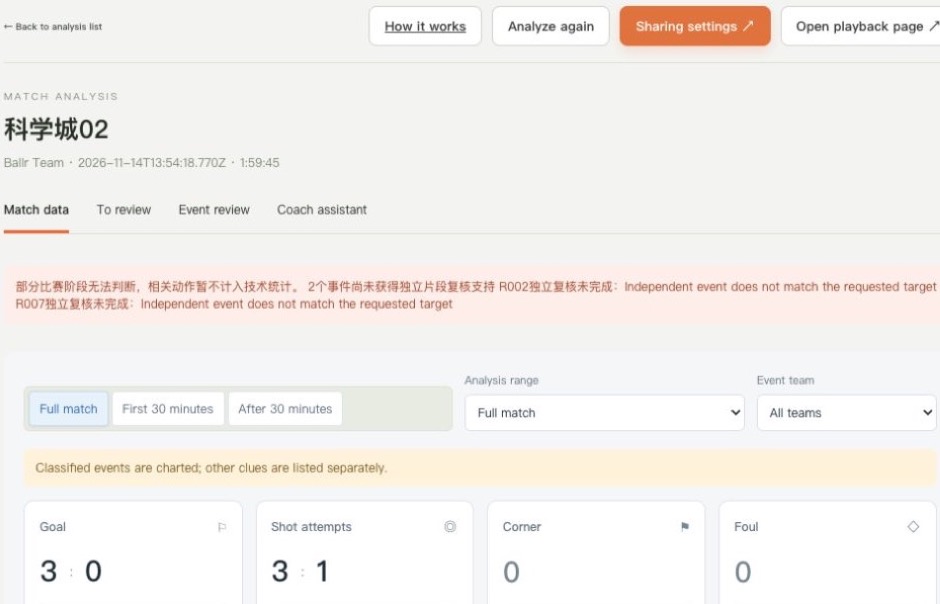
Select View analysis when ready. Click an event to replay it and save the clips you want on the recording page. Manual events and clips remain available.
AI results are for coaches to verify against video. Unknown information stays unknown.
 View full size ↗
Existing results remain viewable. Unfinished sections are clearly marked.
Retry analysis
Partial results can already be viewed; missing content does not mean nothing happened. Check the reason for a failure and retry. If it persists, send the recording link to your administrator.
Existing results remain viewable. Unfinished sections are clearly marked.
You can leave this page. Find the result in the analysis list when it is ready.
Report sharing
New reports share all available charts by default with public recordings. Administrators can change this in sharing settings.
AI results are for coaches to verify against video. Unknown information stays unknown.
If your screen differs from this guide, check the camera model, App or firmware version, account role and organization service status.