
✓Camera connected and healthy
✓Camera can access the internet
✓Account has the required live permission
✓For connected YouTube, the Google account already has a YouTube channel
✓For manual RTMP, the third-party publish address and permission are ready
Enter match information and field size
- 1
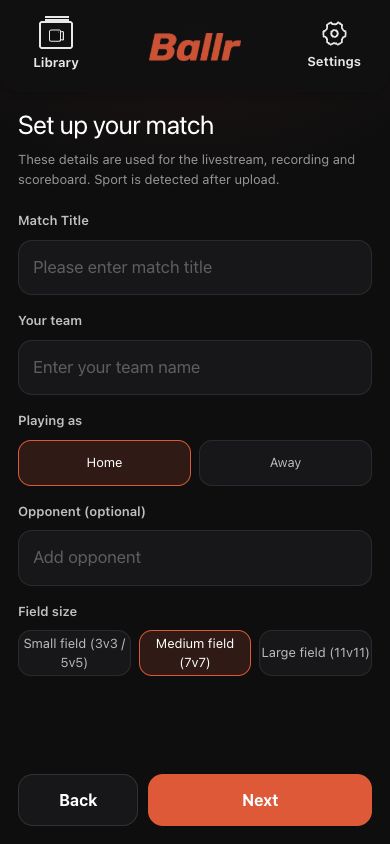
Open Live match and enter your team, home/away status, opponent and field size.
- 2
Choose Small, Standard or Large from the actual pitch dimensions, not only the player count. This affects field detection and video processing.
- 3
Check the team and field, then tap Next to choose a live destination.
 View full size ↗
Enter the team, home/away status and opponent, then select Small, Standard or Large for the actual pitch. The current App screenshot contains sanitized demo data.
Choose Ballr Live
- 1
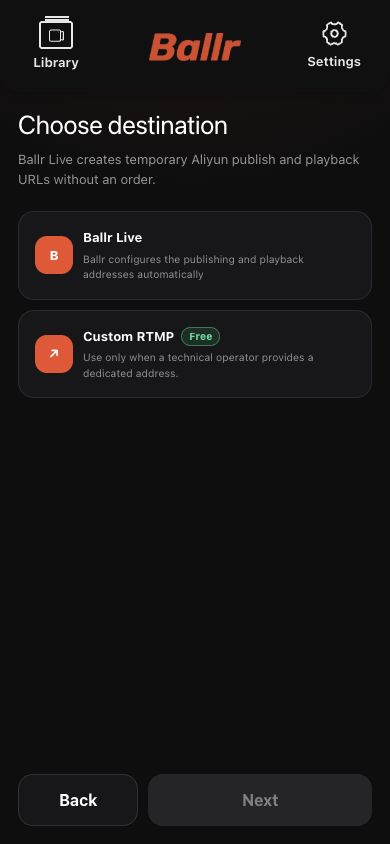
Under Choose live destination, select Ballr Live. Ballr creates the official live session and publish address automatically; no server address or stream key is required.
- 2
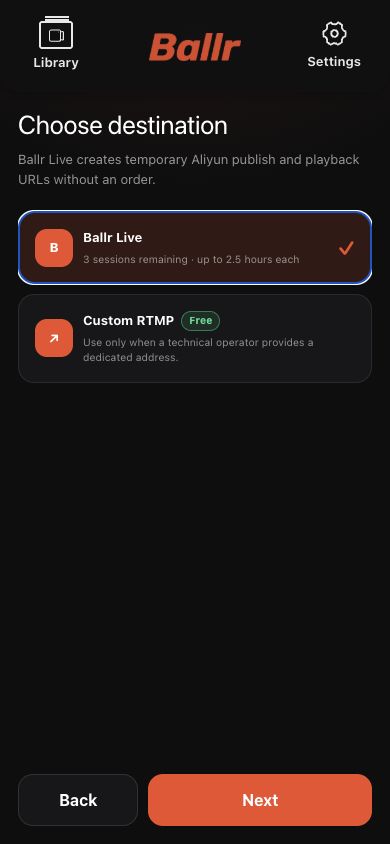
Check the available live credits. One successful start uses one credit and each session can run for up to 2.5 hours. A failed start is returned automatically according to the page status.
- 3
If 0 credits remain or the card is unavailable, contact your organization administrator. Do not bypass the credit check with an unknown RTMP address.
- 4
Confirm that Ballr Live is selected, then tap Next.
 View full size ↗
Choose one destination: Ballr Live is the official Ballr service; custom RTMP sends camera video directly to a third-party platform.
 View full size ↗
After selecting Ballr Live, check the remaining credits and maximum session length. The count is sanitized demo data.
Use a connected YouTube account or manual RTMP
- 1
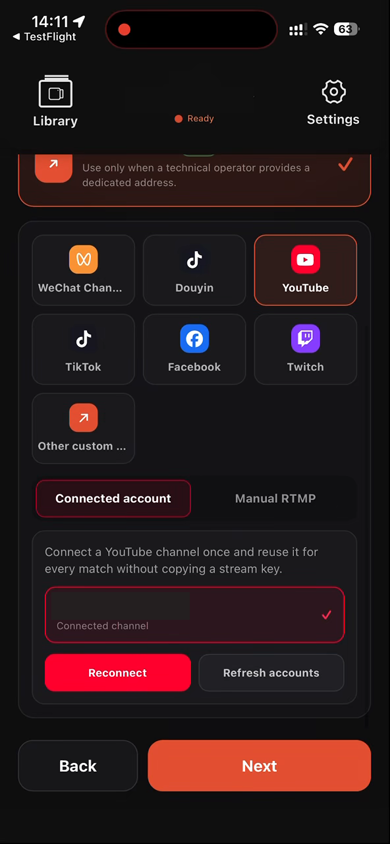
Under Choose live destination, select Custom RTMP and then YouTube. A connected YouTube account is one connection option inside Custom RTMP; it is not Ballr Live and does not use a Ballr Live credit.
- 2
Connected account is recommended. On first use, the club administrator—or the team administrator for an independent team—taps Connect YouTube, chooses the Google account, approves the YouTube access request and returns to Ballr.
- 3
The Google account must already have a YouTube channel. If the return page says YouTube channel not created, create the channel on YouTube and reconnect in Ballr.
- 4
After connection, select the saved channel and tap Next for each match. There is no need to copy a server URL or stream key. Tap Refresh accounts if the channel does not appear immediately after authorization.
- 5
If the App says authorization expired, an authorized administrator taps Reconnect. Disconnecting affects every device in the club or independent team and requires any active YouTube livestream to end first.
- 6
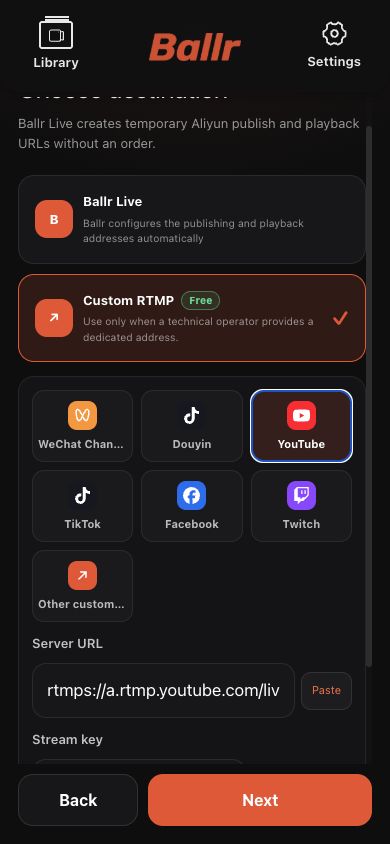
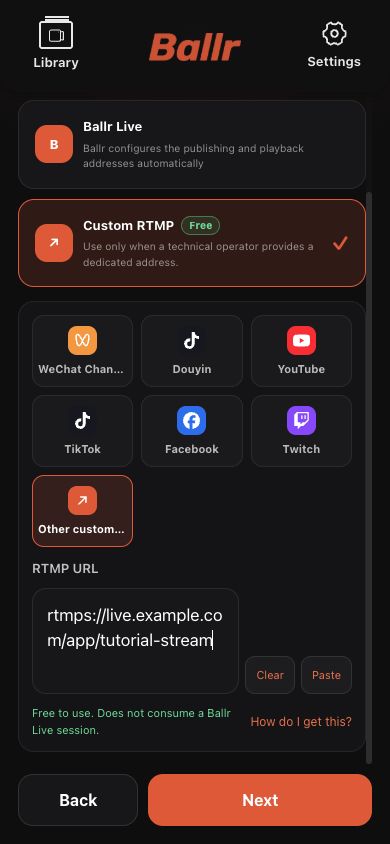
To keep the original workflow, choose Manual RTMP and paste the YouTube server URL and stream key. For other platforms, enter the separate server and key or a complete rtmp:// or rtmps:// address as shown.
- 7
A manual stream key is the live-room password. Never include it in screenshots, chats or support tickets; reset it on the platform if it is exposed.
 View full size ↗
Choose Custom RTMP → YouTube → Connected account, confirm the channel and tap Next. This is a real App 2.2.181 device screen; the camera ID and channel name are masked. Connect YouTube appears here when no account is saved.
 View full size ↗
Manual RTMP remains available for YouTube. Paste the server URL and stream key separately. The key in this screenshot is masked and cannot be used.
 View full size ↗
For Other custom, or when a platform provides one address, paste the complete RTMP / RTMPS URL. The example host and key are fictional sanitized data.
Complete the preflight check
- 1
Confirm the camera is connected and the destination is exactly the Ballr Live or custom RTMP option you selected.
- 2
Run the network test over the camera's current Wi-Fi or 4G connection. Do not start while it says Untested or Failed.
- 3
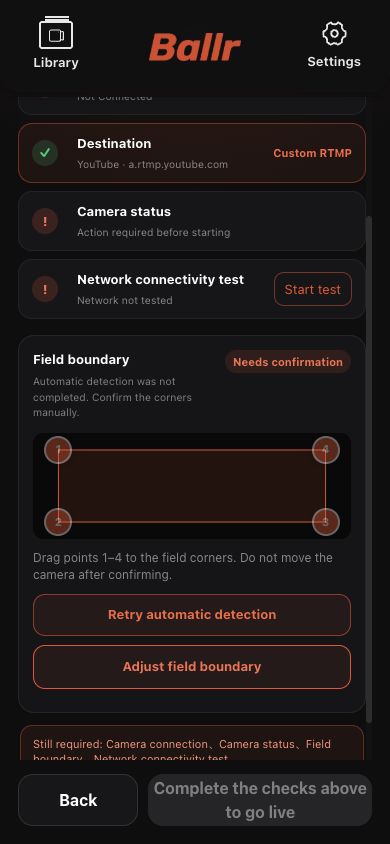
Detect or manually adjust points 1–4 so they match the real touchlines, then confirm the field area.
- 4
Recheck that the camera is near halfway, the tripod center is about 3–5 m from the touchline, the stand is at the specified height, and the camera is level. Do not move the camera or tripod after confirming the corners.
- 5
Tap or slide to start, then wait for the camera to enter an explicit live state.
 View full size ↗
The final page checks camera, destination, network and field area together. Custom RTMP is shown here; Ballr Live uses the same checks.
Verify the picture and end correctly
- The stream is successful only when continuous real video appears in the destination player. A command-sent or Live status alone is not enough.
- Ballr Live: open the official Ballr viewer room and verify sound and picture before sharing. Score management is available only here.
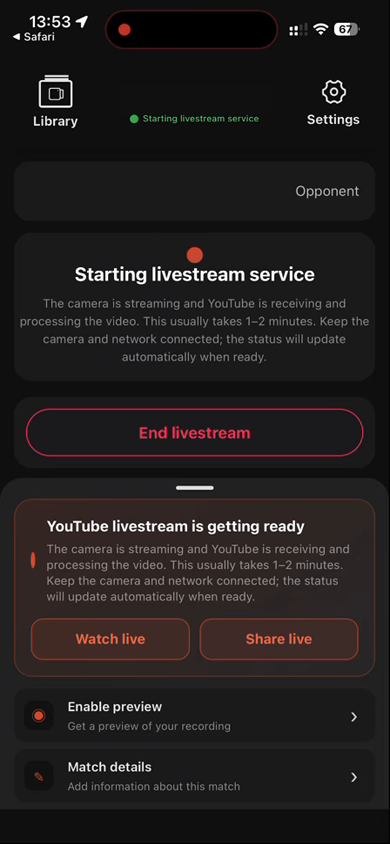
- Connected YouTube: the App may first show YouTube livestream is getting ready. Keep the camera and network connected for the usual 1–2 minutes, then open Watch live and confirm continuous video on YouTube.
- Manual RTMP, including YouTube manual mode: open the third-party preview or viewer. The App does not create, approve or end a manually configured third-party live room.
- When ending, stop camera push in the App and wait for confirmation. Ballr completes a connected YouTube session; for manual RTMP, also end the room on the third-party platform.
- On the completion page, connected YouTube keeps a Watch replay button that opens this livestream's YouTube video. Manual RTMP has no replay button; sign in to the corresponding third-party platform to view and manage the replay.
- If viewers see no picture, record the App status, platform message and time instead of repeatedly restarting.
 View full size ↗
After the camera starts pushing, YouTube usually needs 1–2 minutes to process video. Keep the camera and network connected, then use Watch live to verify real playback. Device and match details are masked.
If your screen differs from this guide, check the camera model, App or firmware version, account role and organization service status.