
Troubleshoot missing overlays
Check the official live mode, team, enabled Hub package and App visibility switches in that order. Uploading, saving or enabling a package in Hub alone does not confirm that viewers can see it.
- No active overlay package in Hub2: check the team, Save and Enable.
- Disabled switch: check that the package contains an image for that slot, no update is pending, and you have session-control permission.
- Upload fails: check image type, the 2 MB limit and the 1:1 or 8:1 ratio, then export and upload again.
- Enabled but invisible: check the official viewer link and session, refresh the App state, toggle visibility and refresh the viewer. Custom RTMP requires the third-party platform’s own advertising tools.
- Still not working: contact Ballr Support with the team, live time, App version, package status and viewer screenshots. Hide contact details, stream keys and other sensitive information.
Control visibility in the Ballr App
- 1
After starting official Ballr Live, open Manage live on the camera control screen.
- 2
Scroll to Live overlays and check the package name.
- 3
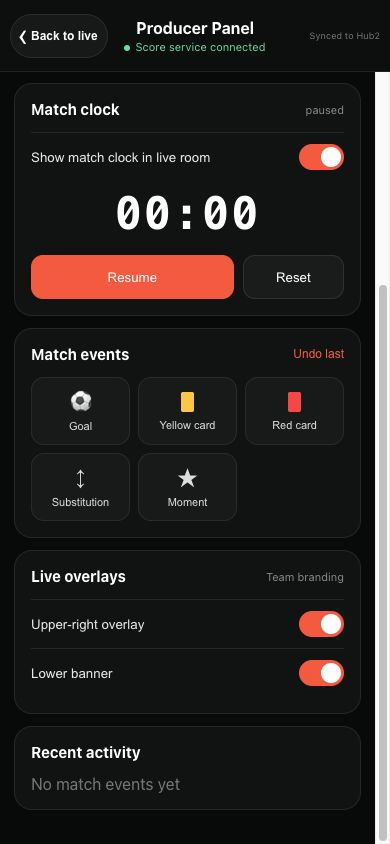
Turn on Upper-right overlay and Lower banner as needed. Each switch is independent; a slot without an uploaded image is unavailable.
- 4
Wait for synchronization and check the preview. You can hide either position during the match without stopping the stream.
 View full size ↗
The actual Ballr App 2.2.183 Manage live component, scrolled to Live overlays, with demo data. The two orange switches control the upper-right and lower positions.
Check the viewer experience
- 1
Open this session’s official viewer link on another connected device. Check both positions and ensure the artwork does not obscure the score or important play.
- 2
Check normal and fullscreen viewing. These are overlays in the official viewer and App preview; this does not mean they are burned into original recordings or automatically added to third-party RTMP video.
If your screen differs from this guide, check the camera model, App or firmware version, account role and organization service status.