
01
Find the stage that stopped
- Camera not confirmed: check camera connection, network and start acknowledgment.
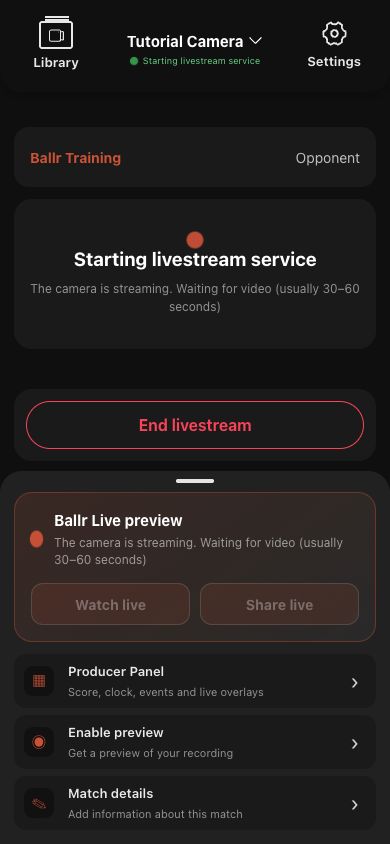
- Camera pushing: wait for the cloud to generate the first playable segments.
- Missing live address: an administrator checks the HTTPS playback address or live-room configuration.
- Address works but player fails: open it in a new page and start playback manually when prompted.
 View full size ↗
When the App says the camera is pushing and waiting for live video, wait the stated 30–60 seconds. Confirm live only after Watch and Share become available and real video appears.
02
Steps
- 1
Wait for the first-video time suggested on the page; do not restart immediately.
- 2
Refresh the viewer room. A page inside WeChat may refresh once automatically.
- 3
Tap Start playback to rule out autoplay restrictions.
- 4
Have an administrator verify real video on another phone or browser.
- 5
If still blank, record the live session, camera ID, start time and page state.
Complete
If your screen differs from this guide, check the camera model, App or firmware version, account role and organization service status.
Did this guide solve the issue?Send feedback