
✓An official Ballr Live stream is running
✓The App shows the official live session
✓Account can operate this live session
Open live management
- 1
Open Manage live from the active camera control page.
- 2
Wait for Score service connected. If unavailable, retry without restarting camera push.
- 3
Check home team, away team and current period.
Update score, clock and events
- 1
Use plus and minus for the home or away score.
- 2
Choose Pre-match, First half, Half-time, Second half, Extra time or Finished.
- 3
Start, pause, resume or reset the match clock.
- 4
Turn score display and match-clock display on or off separately for the live production; one toggle does not replace the other.
- 5
Record goals, yellow cards, red cards, substitutions or key moments.
- 6
Use Undo last action after a mistake, then review recent operations.
Verify the viewer experience
- The official App preview shows teams, score, period and time.
- Upper-right and lower-banner overlays are available only when Ballr Hub has an installed and enabled overlay package. A default package still needs a team administrator to confirm it is enabled.
- Return to live and open the viewer room to confirm video, score and clock are updating.
- Set the period to Finished before ending the live session normally.
Control visibility in the Ballr App
- 1
After starting official Ballr Live, open Manage live on the camera control screen.
- 2
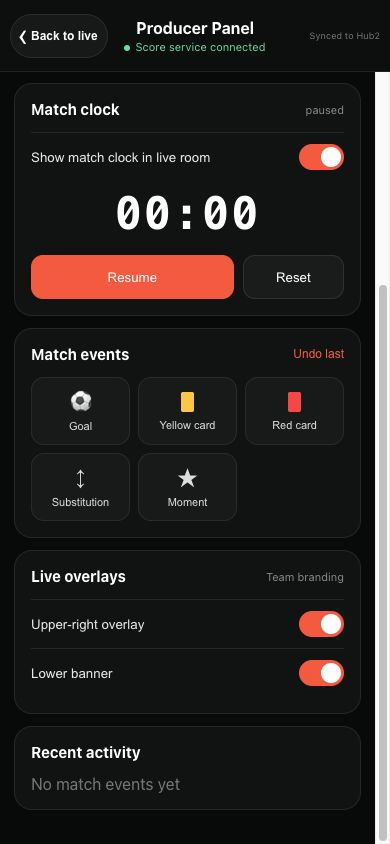
Scroll to Live overlays and check the package name.
- 3
Turn on Upper-right overlay and Lower banner as needed. Each switch is independent; a slot without an uploaded image is unavailable.
- 4
Wait for synchronization and check the preview. You can hide either position during the match without stopping the stream.
 View full size ↗
The actual Ballr App 2.2.183 Manage live component, scrolled to Live overlays, with demo data. The two orange switches control the upper-right and lower positions.
If your screen differs from this guide, check the camera model, App or firmware version, account role and organization service status.