
Quick answer
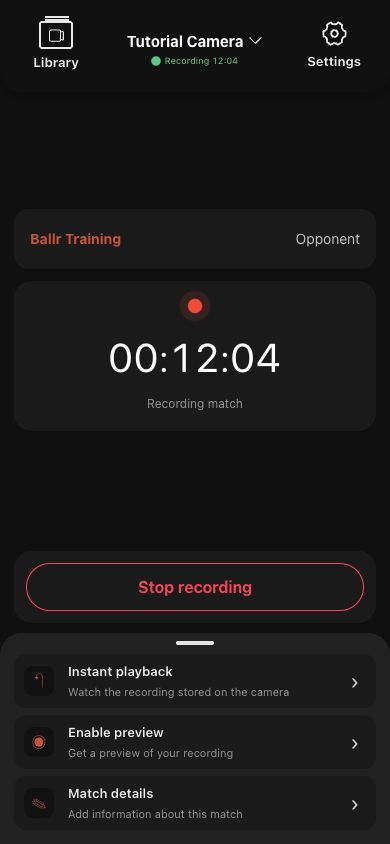
You must see both an explicit Recording match state and a running timer. Command sent, a disabled button or a brief loading state alone does not prove recording started.
 View full size ↗
After reconnecting to the same camera, return to this active recording page, use Stop recording and wait for an explicit save result. The screenshot contains sanitized demo data.
Cannot start
- 1
Confirm the correct camera is connected for this match.
- 2
Refresh state and check whether the camera is already recording or live.
- 3
Confirm battery, storage card and temperature do not block starting.
- 4
Wait for the previous start or stop command; do not tap repeatedly.
- 5
Try a short recording. If it still fails, record the page error and time.
Cannot stop
- Keep the camera powered and reconnect to the same camera.
- Return to the active recording page, stop again and wait for an explicit result.
- Do not power off unless Ballr Support gives on-site instructions based on device state.
- For Venue, an administrator checks the latest command result and device acknowledgment.
If your screen differs from this guide, check the camera model, App or firmware version, account role and organization service status.