
01
Bind to a team
- 1
A club administrator opens Cameras and selects Bind to team; a team administrator selects Add camera.
- 2
Enter the real device ID printed on the camera's base label.
- 3
The club administrator chooses an existing team; the team administrator's camera is added to the current sole team automatically.
- 4
Sign in again or refresh the camera list in the App.
- 5
Connect the camera to the internet and confirm Hub shows it online with a recent sync time.
 View full size ↗
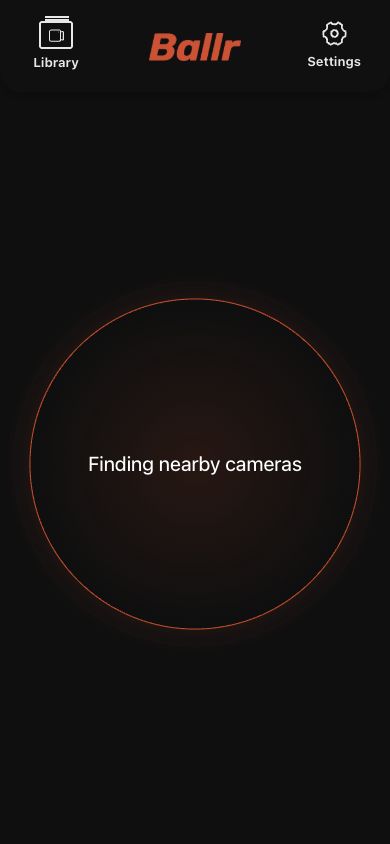
After binding in Hub, return to the App Camera page, sign in again or refresh, and verify the newly listed device ID. This App image is shown only for that cross-product step.
02
Abnormal states
- Offline: check camera power and internet, not only phone Bluetooth.
- SSID differs from the record: compare the physical label with system details.
- Model pending or device disabled: contact Ballr Support to verify the device record.
- When the model is not registered, Hub shows a Model not registered placeholder card; it is not a picture of the physical camera.
- Online does not prove the current recording, upload or live stream succeeded.
Complete
If your screen differs from this guide, check the camera model, App or firmware version, account role and organization service status.
Did this guide solve the issue?Send feedback