
Check in this order
- 1
Confirm the camera is on and its status light is stable.
- 2
Move the phone close to the camera and keep Bluetooth on.
- 3
In iOS Settings, confirm Ballr has Bluetooth permission.
- 4
Close and reopen camera selection in the App, then scan again.
- 5
Confirm another phone is not maintaining a connection to the camera.
- 6
If it appears as Unbound, ask the organization administrator to check ownership.
- 7
If the camera can be found or selected but its status, controls or firmware transfer do not work, check Local Network access for Ballr.
 View full size ↗
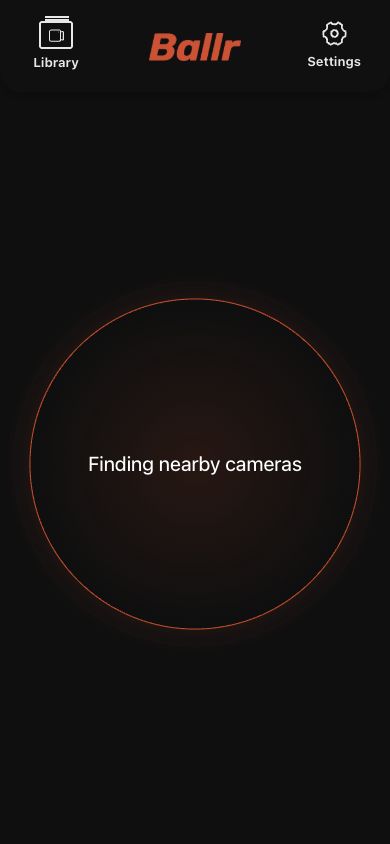
After reopening camera selection, watch the full discovery state. Cameras may appear gradually; select only the matching device ID marked bound and available.
If it still fails
- Record the camera device ID
- Capture the full scan state
- Include the App and phone OS versions
- Contact Ballr Support
If your screen differs from this guide, check the camera model, App or firmware version, account role and organization service status.