
✓A supported 4G camera
✓An installed and active SIM
✓Awareness of carrier data charges
Enable and verify
- 1
Open Settings → Connection settings → SIM / 4G.
- 2
Read the data notice and enable 4G. Wi-Fi still has priority when available.
- 3
Wait for dial-up service and wwan0 to start.
- 4
Refresh carrier, registration and signal information.
- 5
Run the connectivity test. Treat 4G as online only when the test is verified through wwan0.
 View full size ↗
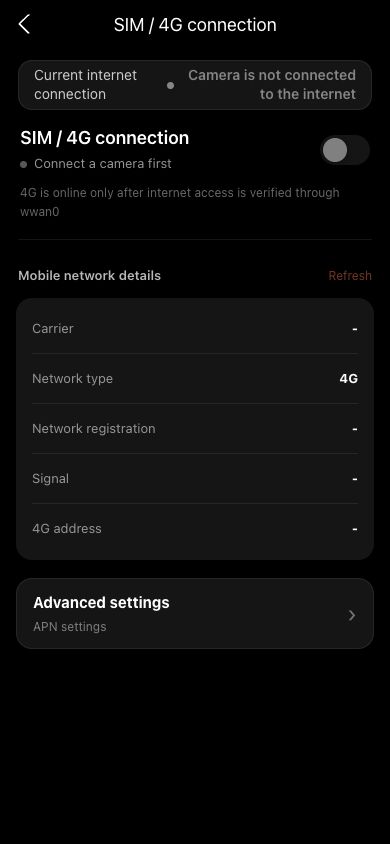
Use the top switch to start or stop 4G, then check carrier, network type, registration, signal and 4G address together. The camera is online through 4G only after verification through wwan0. The screenshot contains sanitized demo data.
Advanced APN settings
- SIMs from common mainland-China carriers normally require no APN change; incorrect settings can remove all connectivity.
- An overseas SIM commonly needs carrier APN details on first use. Restart 4G and verify the wwan0 path after saving.
- Use only the APN, username, password and authentication method supplied by the carrier.
- The camera does not reveal a saved APN password; re-enter it or explicitly clear it when changing settings.
- After saving, turn 4G off and on manually. The App does not restart networking automatically.
If your screen differs from this guide, check the camera model, App or firmware version, account role and organization service status.