
✓Recording ended and saved safely
✓Camera internet verified
✓Camera powered and ventilated during upload
Before uploading
- Under Recordings → On camera, confirm the correct file, name and time.
- Prefer stable Wi-Fi without a sign-in page for large files; 4G can use substantial data.
- Upload depends on camera internet, not phone internet. Run the connectivity test when needed.
- Submit each recording only once to avoid duplicate tasks.
Start and verify the upload
- 1
Under Recordings → On camera, find the recording and verify its name, time and size.
- 2
Tap Upload beside the recording, or open details and tap Upload to cloud.
- 3
If the camera is offline, open Settings → Connection settings and connect Wi-Fi or supported SIM/4G.
- 4
Wait for Uploading, then confirm percentage, transferred size and estimated time continue to change.
- 5
Keep the camera powered. You may leave the page, but do not shut down or submit again.
- 6
At 100%, wait for Cloud processing. Transfer is complete, but playback is not ready yet.
 View full size ↗
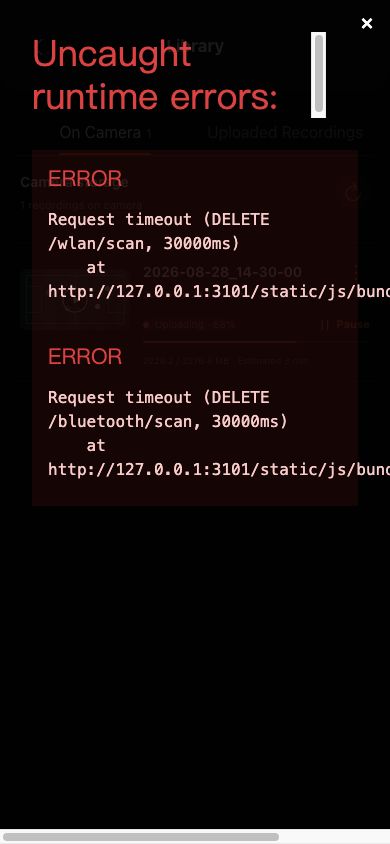
Check percentage, transferred size, estimated time and the pause button. Recordings not yet submitted show Upload. The screenshot contains sanitized demo data.
Pause, resume and recover
- Waiting for network: the task continues after camera internet returns.
- Paused: tap Resume. If pause failed, the page will say upload is still running.
- Upload failed: check camera connection, readable storage and stable network, then retry the original task.
- Progress unchanged for a long time: record the percentage and message, then check network; do not create another task immediately.
- Recorded progress can recover after an App restart. Return to On camera to keep monitoring the original task.
- A task confirmed as paused before a camera restart returns with its original task information after reconnecting; tap Resume instead of uploading the same file again.
- At 100%, Cloud processing means Hub2 has not yet confirmed a playable version. Do not treat the camera upload source URL as finished playback.
If your screen differs from this guide, check the camera model, App or firmware version, account role and organization service status.