
Preview an appearance
- 1
Open a recording in the App player and open the picture-style control. On a phone it appears in a bottom sheet.
- 2
Choose Original, Natural, Vivid or Soft and adjust the intensity. Hold the comparison control to compare with the original image.
- 3
Move to a useful match frame before judging the result; lighting and grass color vary between scenes.
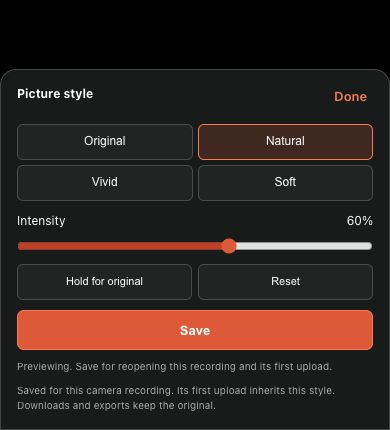 View full size ↗
Captured from the current product components with sanitized demonstration data. No customer account, password or stream key is shown.
Save explicitly
- 1
Press Save to keep the selected style. Previewing or closing the panel is not the same as saving; unsaved changes are discarded.
- 2
Reopen the same recording to check the saved appearance. Local settings belong to the current account, camera and recording.
- 3
The first upload can carry the saved local appearance into Hub. Upload retries do not overwrite later appearance changes made in the cloud.
What does not change
- Picture styles affect playback appearance, not the original recorded video. Original downloads are not permanently color-graded by this setting.
- Fullscreen playback keeps the current playback controls and position; the elapsed and total times are shown together in App 2.2.260.
- If the option is missing, check the installed App version and player mode. Do not confuse a camera exposure setting with a playback style.
If your screen differs from this guide, check the camera model, App or firmware version, account role and organization service status.