
Annotate a match moment
- 1
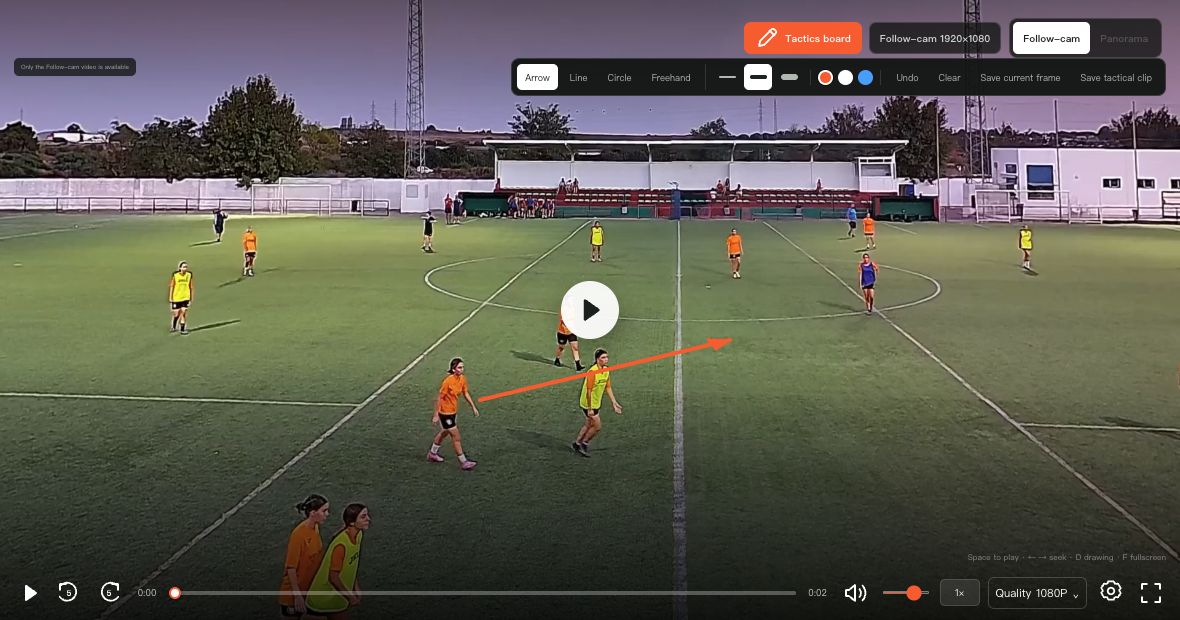
Open a playable recording in Ballr Hub, pause at the relevant moment and open the tactical board.
- 2
Set the view and add the annotations needed for the explanation. Check that the players and field markings remain readable on a phone.
- 3
Use Save current frame to export a PNG containing the current view, annotations and video-time information. Check the downloaded image before sharing it.
 View full size ↗
Captured from the current product components with sanitized demonstration data. No customer account, password or stream key is shown.
Save a tactical review clip
- 1
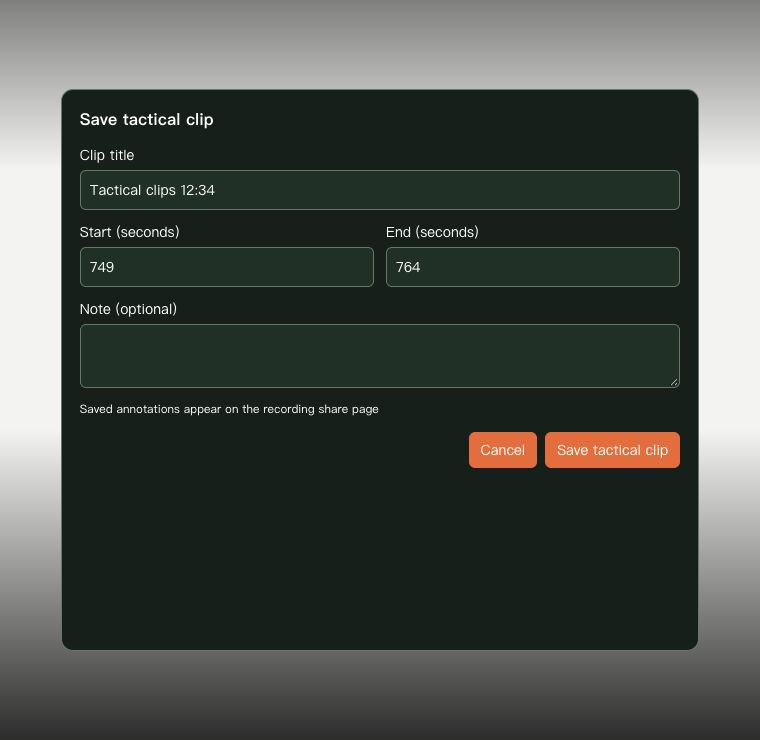
With editing permission, choose Save tactical clip inside the board. Set a review range between 1 and 180 seconds and add a clear title or note.
- 2
Save, then open the saved item. Viewing its annotations pauses at the annotated frame; playing the review starts at the selected beginning, pauses for the annotation and can continue to the end.
- 3
Check the saved item with the intended viewer's access. Club and team administrators can manage permitted items; viewers cannot assume they have editing or deletion rights.
 View full size ↗
Captured from the current product components with sanitized demonstration data. No customer account, password or stream key is shown.
Sharing and download boundaries
- A tactical clip saves a range and annotations over the existing recording. It is not a newly rendered MP4 with drawings burned into the video.
- A public full-recording share can expose saved review material. An independently generated clip link is a different object and does not automatically include the parent recording's tactical board.
- If you need a separate video file, use the recording's supported clip/download workflow and verify the output. Do not promise that a PNG export is an annotated video export.
If your screen differs from this guide, check the camera model, App or firmware version, account role and organization service status.