
Halftime review on the camera — no upload needed
Bookmark is not just a post-match tool. Once you stop and save the first-half recording, connect to the camera and use the Ballr App to review the panorama and saved bookmarks with your players. Discuss positioning, attacking and defending, and second-half adjustments. Uploading, cloud processing and Ballr Hub sync are not prerequisites for this local review.
- Bookmarks are a free basic feature. No separate subscription or activation is required, but your signed-in account must have access to the relevant team and camera.
- Verify your account and camera access online, then connect to the camera and start a normal recording. A camera hotspot may not provide internet access; reconnect to the internet and tap Check again if verification fails.
- Bookmarks are not instant replay during recording or automatic goal detection. They store positions within the recording; stop recording before reviewing clips.
Review panoramas and bookmarks in Library → On Camera
- 1
At halftime, stop recording and wait for the video to finish saving. Keep the phone connected to the camera, or reconnect to the same camera if disconnected. This is not instant replay while recording is still in progress.
- 2
In the Ballr App, open Library → On Camera and select the first-half recording you just saved. Review it in the panoramic view without uploading or downloading the entire match first. Do not look for this local video in the uploaded-recordings tab.
- 3
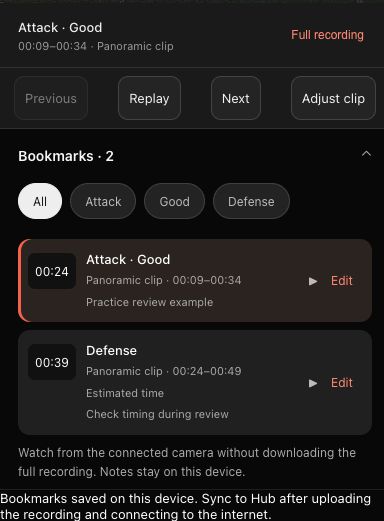
Expand the bookmark list and tap a time or entry to jump to its panoramic segment. Pinch to zoom and drag to inspect the action while explaining it to your players. If you did not add bookmarks, you can still find the moment in the full recording.
- 4
Use Previous, Next or Replay to review each moment; select Full recording to leave the segment range. After your team talk, return to the camera recording screen and start recording again before the second half begins. Confirm that the timer is running.
 View full size ↗
Operation-area capture of the actual Ballr App interface with sanitized demonstration data; it does not confirm a physical camera connection, cloud sync or a completed save to Photos.
Add a bookmark during recording
- 1
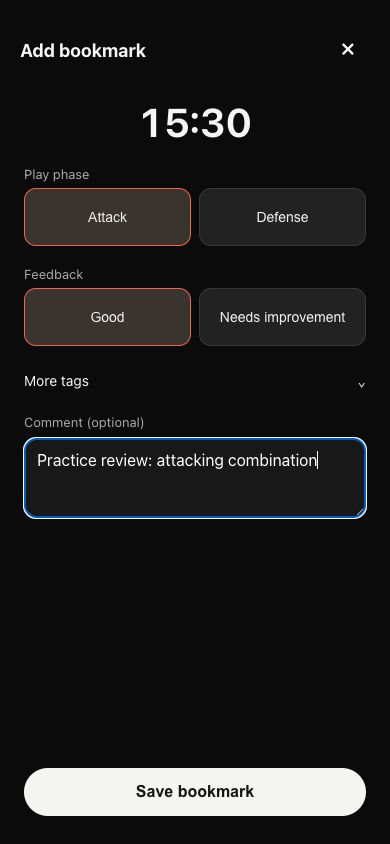
Confirm that recording and its timer are running. Open Bookmarks in the recording actions menu and tap Add bookmark.
- 2
The moment is captured when you enter the add screen; choosing tags or typing a comment does not move it later. This is recording time, not wall-clock time or the scoreboard clock.
- 3
Select play-phase and feedback tags as needed. You can select multiple tags or leave them empty to save a Quick mark. The comment is optional.
- 4
Tap Save bookmark, then check the time, tags and comment in the list. Opening the form or selecting a tag without saving does not finish the action.
 View full size ↗
Operation-area capture of the actual Ballr App interface with sanitized demonstration data; it does not confirm a physical camera connection, cloud sync or a completed save to Photos.
More tags and custom templates
- 1
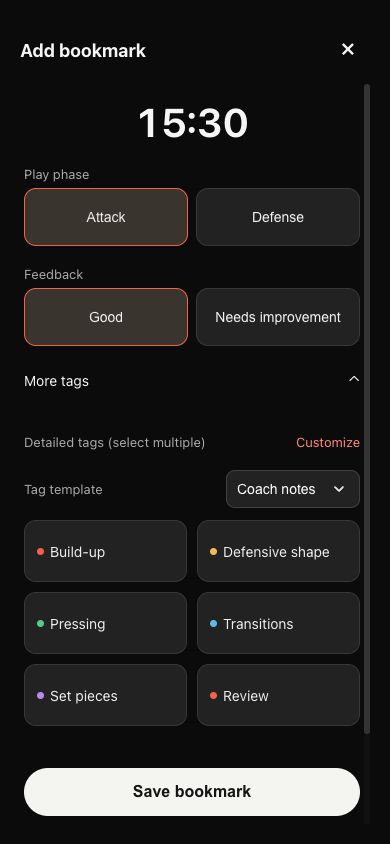
Expand More tags and choose a Tag template for the match. Detailed tags support multiple selections.
- 2
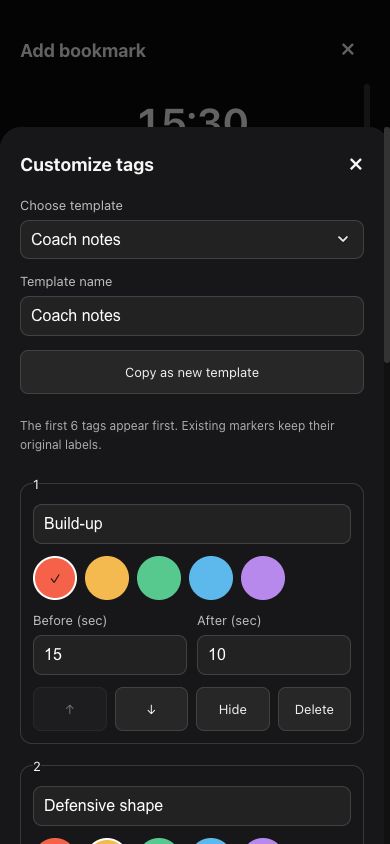
Tap Customize to change template and tag names, colors and seconds before/after the mark. You can copy a template, add or hide tags and reorder them.
- 3
Tap Save template. The first six tags appear first. Template changes do not rewrite existing bookmarks; edit an existing bookmark separately when needed.
 View full size ↗
Operation-area capture of the actual Ballr App interface with sanitized demonstration data; it does not confirm a physical camera connection, cloud sync or a completed save to Photos.
 View full size ↗
Operation-area capture of the actual Ballr App interface with sanitized demonstration data; it does not confirm a physical camera connection, cloud sync or a completed save to Photos.
Find, edit, delete and undo
- 1
Expand Bookmarks and filter by tag; choose All to restore the full list. During recording, switch between recent bookmarks and the full list as needed.
- 2
Tap Edit on a bookmark. Adjust its label, recording time in seconds, before/after window and comment, then save. Before can be 0–120 seconds; after can be 1–120 seconds.
- 3
Use Undo last bookmark for a mistaken recent mark, or delete a specific one in its editor. The deletion message offers Undo delete. Deleting a bookmark retains the original video; it does not delete the recording.
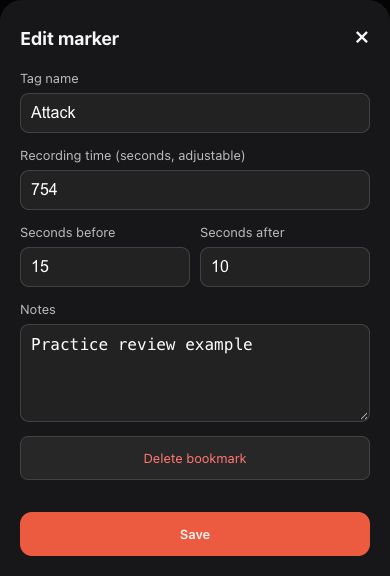 View full size ↗
Operation-area capture of the actual Ballr App interface with sanitized demonstration data; it does not confirm a physical camera connection, cloud sync or a completed save to Photos.
Correct timing and adjust the clip
- 1
Select a bookmark and tap Adjust clip. If Estimated time or an approximate-time indicator appears, check the actual footage first.
- 2
Use 1s earlier or 1s later, or play to the correct frame and choose Use current frame as bookmark. You can also enter recording seconds directly in Edit.
- 3
Move Clip start and Clip end, then replay to check that the complete action is included. Correct out-of-range marks first. These changes affect bookmark timing and clip boundaries, not the original video.
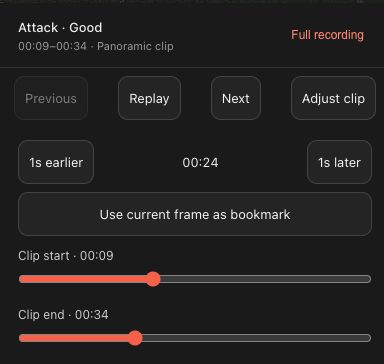 View full size ↗
Operation-area capture of the actual Ballr App interface with sanitized demonstration data; it does not confirm a physical camera connection, cloud sync or a completed save to Photos.
Save the selected clip to Photos
- 1
Select a bookmark in camera-recording review, check its start and end, then tap Download clip at the top. Without a selected bookmark, the download action is for the full recording.
- 2
Keep the camera connected while saving and avoid starting duplicate jobs. Allow Ballr to add photos when prompted and check that the phone has enough storage.
- 3
Wait for Clip saved to Photos and verify the video in the system Photos app. Creating a bookmark does not automatically create a download. This saves the selected panoramic clip, not an automatically tracked or AI highlights video.
 View full size ↗
Operation-area capture of the actual Ballr App interface with sanitized demonstration data; it does not confirm a physical camera connection, cloud sync or a completed save to Photos.
Optional: upload the video and sync bookmarks to Ballr Hub
- 1
Upload the matching camera video and sync bookmarks only when you want cloud-based or team review in Ballr Hub; this is not needed for local halftime review. Save the bookmarks first. The camera needs internet access to upload, and the phone also needs internet access to sync its bookmarks.
- 2
Stay signed in with the original account and open Ballr. Sync is attempted automatically online. Saved on this device means local storage only; Bookmarks synced to Hub confirms sync completion.
- 3
Do not uninstall the App, clear its data or switch phones as troubleshooting before sync. Edits require another sync. Synced bookmarks do not mean the video has finished processing or is playable.
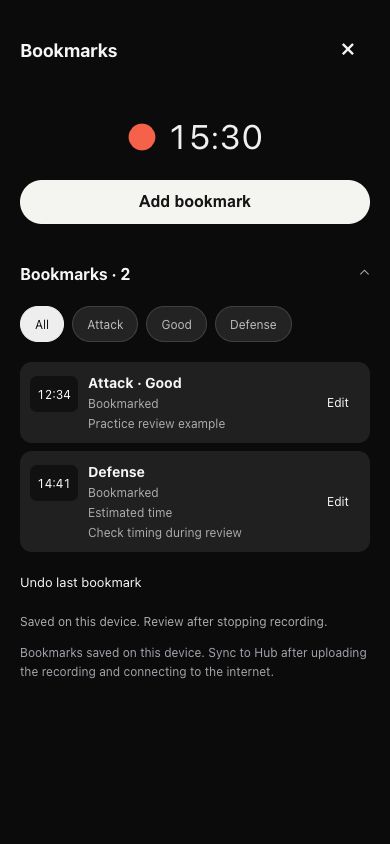 View full size ↗
Operation-area capture of the actual Ballr App interface with sanitized demonstration data; it does not confirm a physical camera connection, cloud sync or a completed save to Photos.
Optional: view synced bookmarks in Ballr Hub
- 1
Sign in to Ballr Hub, select a team you can access and open the same cloud recording. Look in Events or the match timeline.
- 2
Find Coach marker, check the tags, comments and times, and click an entry to seek. If missing, clear event filters and confirm the App reports successful sync.
- 3
Edit App-origin bookmarks on the original phone and sync again, rather than treating them as ordinary events created in Hub. Team and recording permissions still control who can view them; a free feature is not public access.
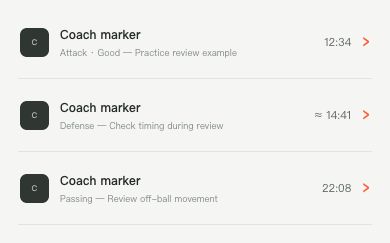 View full size ↗
Operation-area capture of the actual Ballr Hub interface with sanitized demonstration data; it does not confirm a physical camera connection, cloud sync or a completed save to Photos.
Troubleshooting access, timing, sync and saving
- Do I have to upload before reviewing at halftime? No. Stop and save the recording, connect to the camera, and open Library → On Camera to review the panorama and saved bookmarks. You do not have to wait for cloud processing. This does not mean instant replay is available while recording continues.
- Cannot find the entry? Use an App version supporting bookmarks. To add a mark while recording, use the normal recording screen, not live streaming or the cloud player. To review after stopping and saving, use Library → On Camera. The bookmark list belongs to a specific account, camera and recording; check that all three match.
- Verification failed: check the phone’s internet connection, account and camera assignment, then tap Check again. Buying a plan does not fix verification. Update an older App that still asks for activation; contact Ballr Support if it persists.
- Wrong time or out-of-range clip: confirm the recording first, then align estimated timing to the footage after recording. Do not substitute wall-clock or scoreboard time for recording seconds.
- Missing in Hub: check the account and team, corresponding uploaded recording, phone internet and open App. Wait for sync confirmation, then refresh Hub. Keep local data and the original video; do not repeatedly upload the whole match.
- Cannot save: follow the error to check Photos access, storage, camera connection and clip boundaries. Wait for any existing save job. Provide support with the App version, recording name, time and sanitized error screenshot, never passwords, keys or private access links.
If your screen differs from this guide, check the camera model, App or firmware version, account role and organization service status.