
Normal stages
After camera upload completes, the cloud still indexes, transcodes and generates a tracking version. Larger files and busy queues can take longer.
When to investigate
- 1
Confirm the App upload is complete rather than waiting for network.
- 2
Refresh the recording state in Hub or Venue and match title, time and device ID.
- 3
Check whether only one video version is still unavailable.
- 4
Contact an administrator or Support if the page explicitly says Failed, has no playback address or shows no progress for a long time.
- 5
Do not upload again from a computer or create duplicate tasks.
 View full size ↗
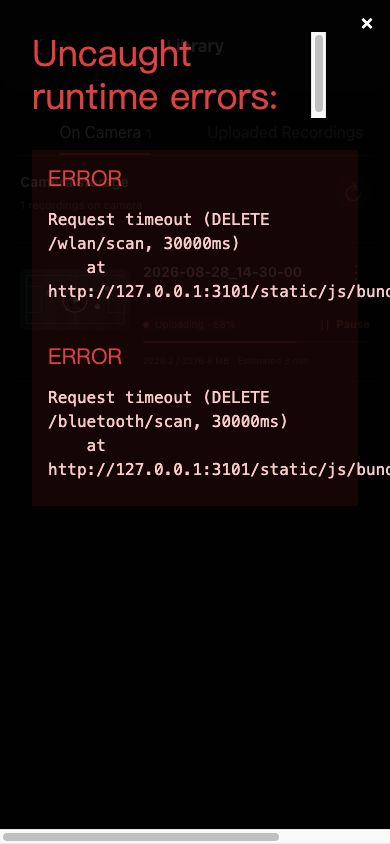
Check the same recording in On camera and Uploaded first. An incomplete upload and cloud Processing are different stages; do not submit the same recording again.
If your screen differs from this guide, check the camera model, App or firmware version, account role and organization service status.