
01
Quick answer
An old network name or IP does not prove the new setup worked. Connection is successful only after the target Wi-Fi, current state, valid address and real phone-to-camera reachability are all verified.
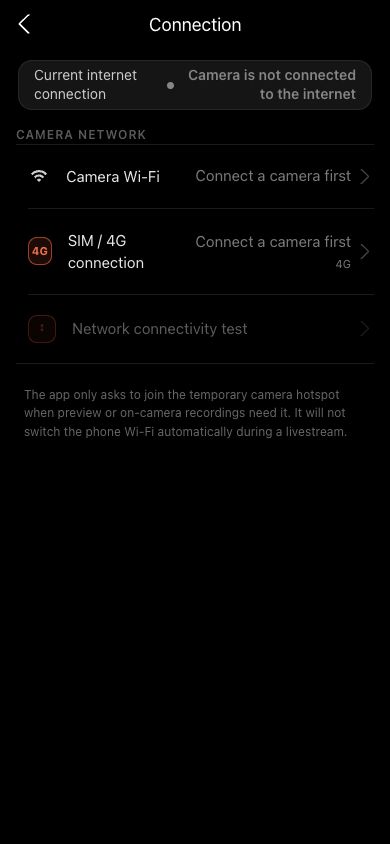 View full size ↗
After Wi-Fi setup, return to connection settings and check both the camera Wi-Fi state and connectivity test. Connected still needs a real internet result.
02
Use the message to diagnose
- Wrong password / authentication failed: re-enter the Wi-Fi password with correct capitalization.
- Network not found: confirm the name and signal, then scan again.
- DHCP failed: the router did not assign an address; restart the network or choose another Wi-Fi.
- Configuration write failed: the name or password was not fully written to the camera; reconnect and retry.
- Captive portal required: this is unsupported; use a network that accepts a password directly.
03
Verify
- 1
Wait for camera services to recover after setup.
- 2
Confirm the page shows the camera connected to Wi-Fi.
- 3
Then confirm Camera can access the internet; do not rely on the Wi-Fi icon alone.
Complete
If your screen differs from this guide, check the camera model, App or firmware version, account role and organization service status.
Did this guide solve the issue?Send feedback