
✓Camera connected and ready
✓A Wi-Fi network with a direct password, or an active SIM
Open connection settings
- 1
Select the camera and wait until it is ready.
- 2
Open Settings → Connection settings.
- 3
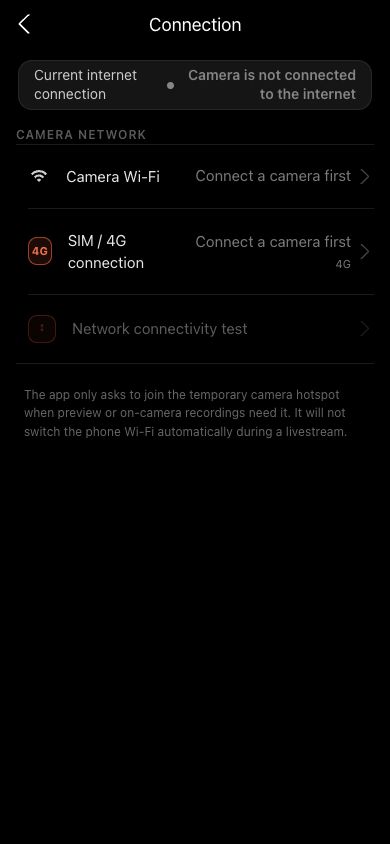
Review Camera Wi-Fi, SIM / 4G and Connectivity test on the same page.
- 4
Identify the current uplink before configuring Wi-Fi or using 4G.
 View full size ↗
Connection settings shows camera Wi-Fi, SIM/4G, the actual active uplink and the connectivity test. The screenshot uses a sanitized demo network.
Connect the camera to Wi-Fi
- 1
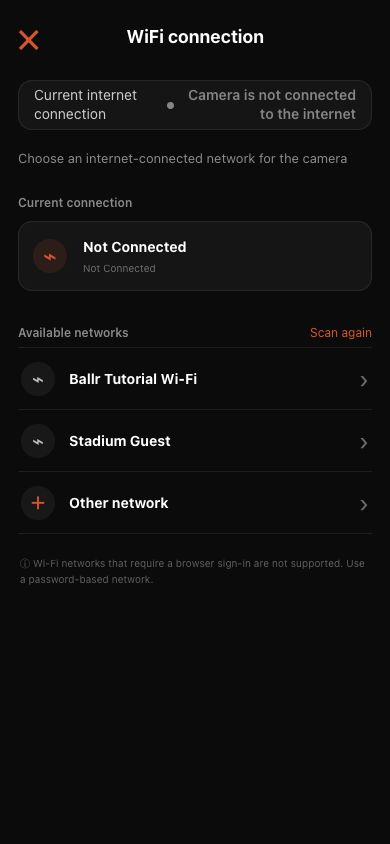
Tap Camera Wi-Fi and wait for nearby networks.
- 2
Choose the target network. Tap Rescan when missing, or Other network for a hidden network.
- 3
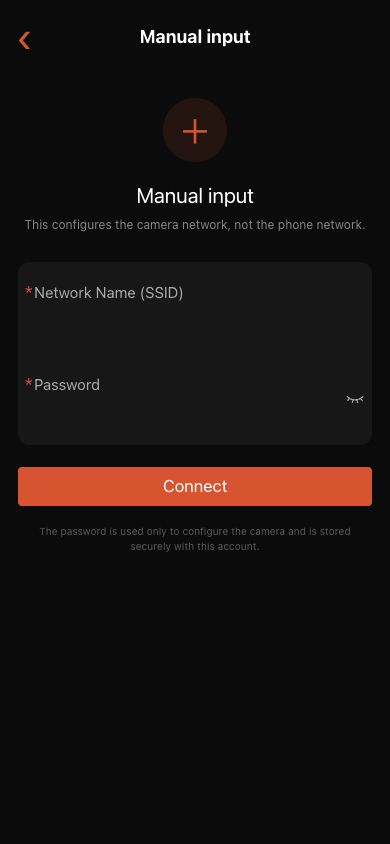
Enter the SSID and password, then tap Connect.
- 4
Keep the App and camera connected until setup succeeds.
- 5
Return to connection settings and run the connectivity test. Only a successful test proves the camera can upload and stream.
 View full size ↗
Check the current connection, then choose from available networks. Captive-portal Wi-Fi is not supported. The screenshot uses a sanitized demo network.
 View full size ↗
For Other network, enter the exact SSID and password. This page configures the camera network, not the phone. No real password is shown.
Status guide
- Bluetooth connected: the phone can send some commands, but preview and recordings may still be unavailable.
- Camera hotspot: the phone joins the camera directly for preview and on-camera recordings.
- Wi-Fi LAN: phone and camera share a network, usually without switching to the hotspot.
- Current internet method shows Wi-Fi: the App has read and verified the router network the camera actually uses.
- Current internet method shows 4G: the App has verified a mobile-data internet path; carrier registration alone is not enough.
- Camera internet verified: the camera can independently reach the cloud. A network name or enabled switch cannot replace this test.
 View full size ↗
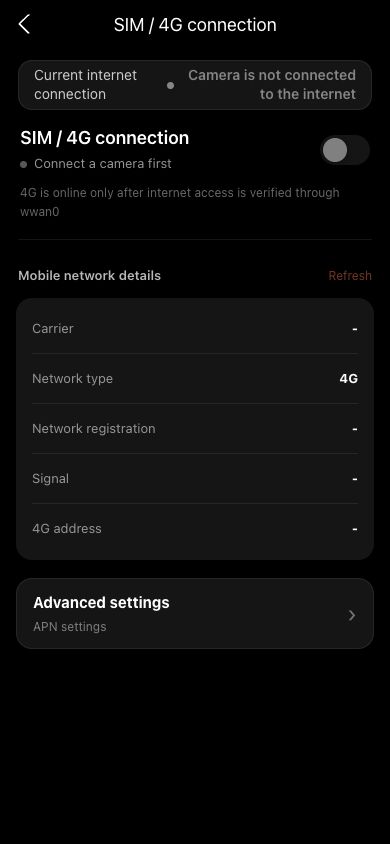
The current 4G page shows the switch, carrier, network type, registration, signal, 4G address and advanced APN settings. The safe disconnected state contains no real SIM or device details.
View full size ↗Use this current page to distinguish Bluetooth control from the camera's verified Wi-Fi or 4G internet path. Bluetooth alone does not prove internet access.
Common checks
- Controls work but preview does not: check whether the phone can reach camera services.
- Preview works but upload does not: check camera internet, not phone internet.
- Wi-Fi is named but the test fails: the camera reached the router, not usable internet.
- 4G is registered while the active method remains Wi-Fi: the camera is correctly prioritizing working Wi-Fi.
- Do not switch network, camera or cloud region during an upload or live stream.
- Do not force a phone Wi-Fi change during streaming just to preview; use the short-preview flow shown in the App.
- If the phone joined the hotspot but nothing responds, temporarily disable VPN and retry.
If your screen differs from this guide, check the camera model, App or firmware version, account role and organization service status.