
Quick answer
Reconnect to the same camera, open On camera recordings and find the original upload task. Wait for its state to recover, then continue it; do not create a second task for the same file.
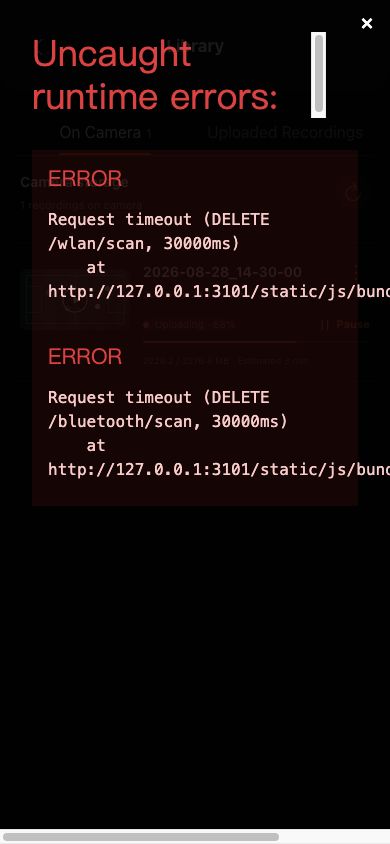 View full size ↗
Read percentage, transferred size, remaining time and the task button before deciding whether the upload is active, paused, waiting for network or failed. The screenshot contains sanitized demo data.
Recovery order
- 1
Confirm recording ended and the file appears in the on-camera library.
- 2
Confirm the camera can access the internet, not only the phone.
- 3
Open upload progress and identify Waiting for network, Paused or a specific failure.
- 4
Continue after network recovers; retry a failed task once.
- 5
If time synchronization failed, confirm the phone sets time automatically and retry.
- 6
Cloud processing after upload is normal; do not submit again.
If your screen differs from this guide, check the camera model, App or firmware version, account role and organization service status.