
Open the recording's field editor
- 1
Sign in to Ballr Hub with permission to manage the recording. Open the ordinary recording, then More → Edit field ROI.
- 2
Wait for the panorama to load. On a slow connection it may retry; use the visible Retry control if loading fails. A failed image load is not an empty field to save.
Submit a useful correction
- 1
Adjust the pitch corners and any near-side curve points to the actual field. Check both halves and exclude adjacent pitches or spectator areas.
- 2
Add a note describing the problem and relevant video times. If the camera moved during recording, state when it moved; one outline cannot automatically describe multiple camera positions.
- 3
Submit the correction or optimization request and check the status. While a request is queued or running, editing may be locked to protect the current work.
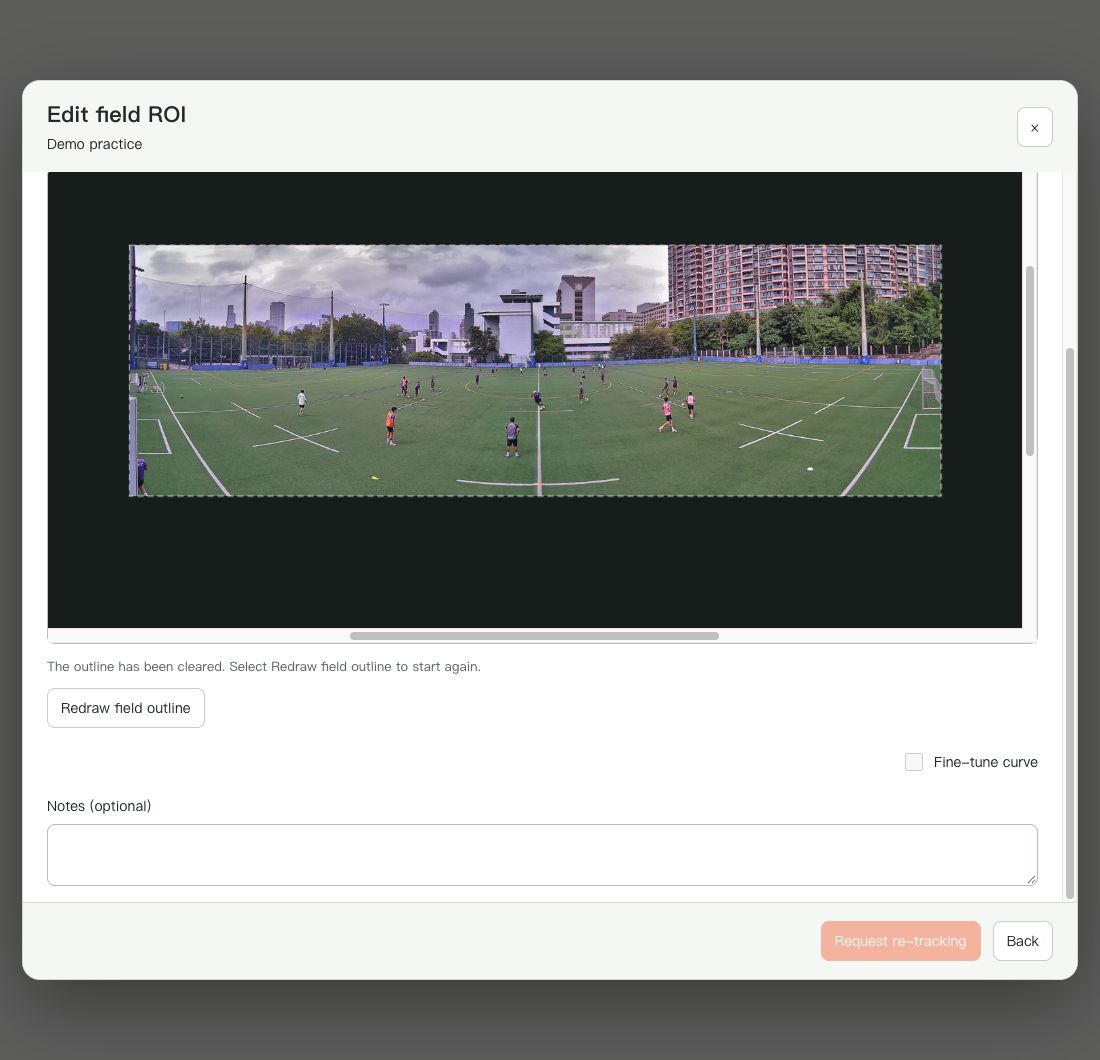 View full size ↗
Captured from the current product components with sanitized demonstration data. No customer account, password or stream key is shown.
Understand the status
- Saving a correction submits a proposal; it does not immediately replace the active tracking result or start a user-controlled reprocessing job.
- After the request is completed, reload the recording and check playback at the reported times. Do not infer success only from a saved outline.
- The displayed processed outline and your latest proposed correction can differ until processing is completed. If the request fails or remains unresolved, contact Ballr Support; do not delete the recording to retry.
Redrawing does not automatically repair recorded footage
- For uploaded footage, submit a field correction or tracking-optimization request in Ballr Hub. Include the recording time of the move, views before and after it and the affected segment. One static boundary cannot automatically cover several viewpoints. Contact Ballr Support if unsure.
- Keep the original video; do not delete or repeatedly upload it to troubleshoot. Saving a boundary or submitting a request is not proof that past footage is fixed. After processing finishes, review the reported timestamps to verify the result.
If your screen differs from this guide, check the camera model, App or firmware version, account role and organization service status.