
Is there an invitation link?
- The current team workspace creates a player account directly. It is not an email invitation, QR-code invitation or acceptance-link workflow.
- A team administrator manages their own team. For an existing account that needs to join or move teams, contact Ballr Support instead of creating duplicate identities.
Create a player account
- 1
As the team administrator, open Team management → Player accounts → Create player. Confirm the intended team before entering details.
- 2
Enter the player's name (2–40 characters), then choose email or phone as the login identifier. Use the correct country/region code for a phone number.
- 3
Set an initial password of at least 8 characters (maximum 128). Check the form and create the account once. An already registered email or phone cannot be reused to create another account.
- 4
Confirm the player appears in the current team's list. Give the identifier and initial password privately to that player; do not put passwords in group chats or screenshots.
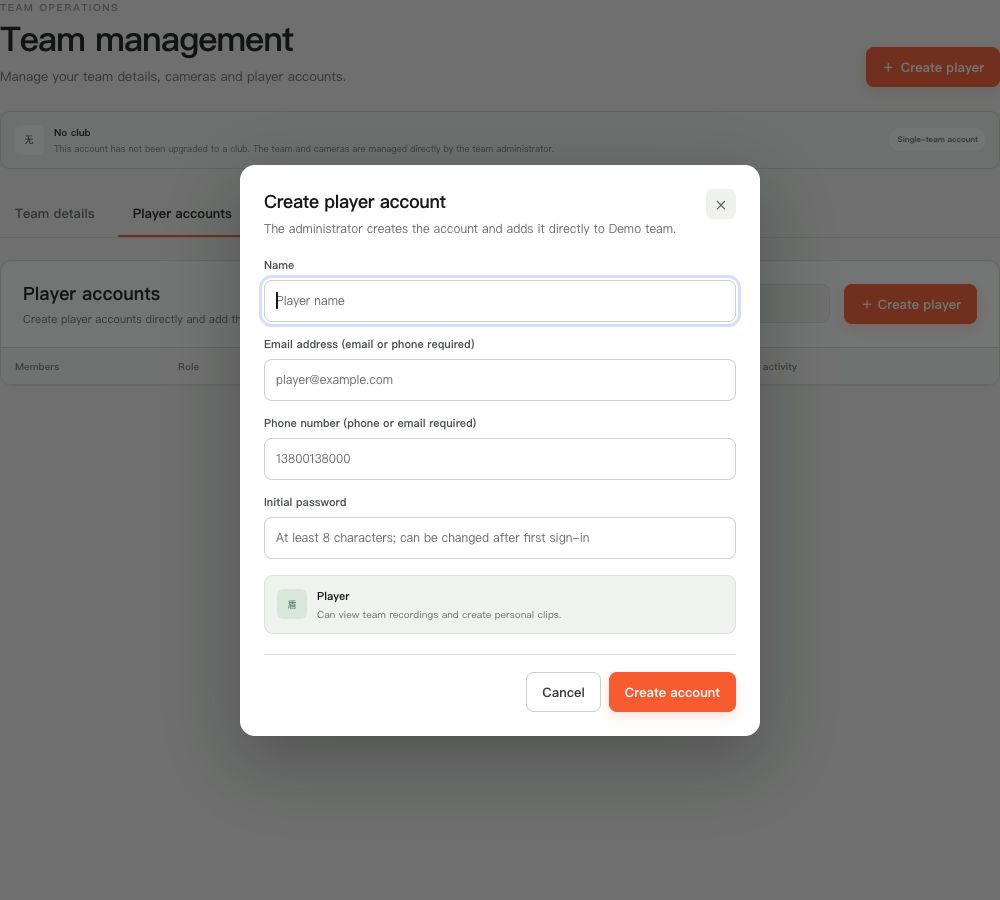 View full size ↗
Captured from the current product components with sanitized demonstration data. No customer account, password or stream key is shown.
First login and permissions
- Ask the player to sign in with the account you created and change the initial password after their first login. There is no need to wait for an invitation email or a password-change prompt.
- The default player access is to view recordings. Enable Edit match details only when the player needs it, then verify the resulting access.
- If the player cannot see a recording, check the login account, team and recording visibility before uploading it again. A password reset invalidates old sessions; tell the affected player to sign in again.
If your screen differs from this guide, check the camera model, App or firmware version, account role and organization service status.