
Place an order
- 1
Open venue.ballr.cc/play or scan the QR code at the field.
- 2
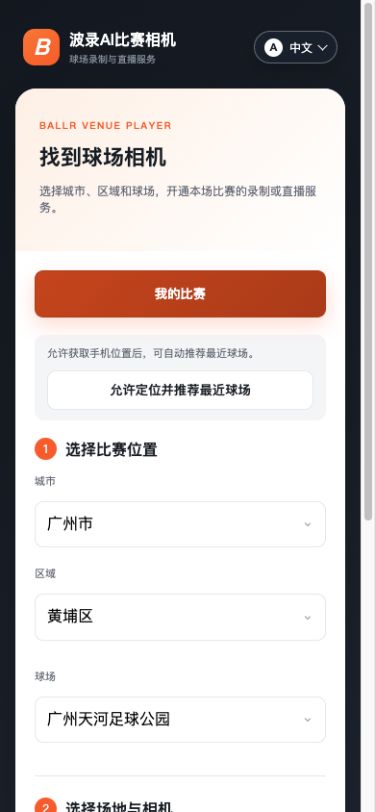
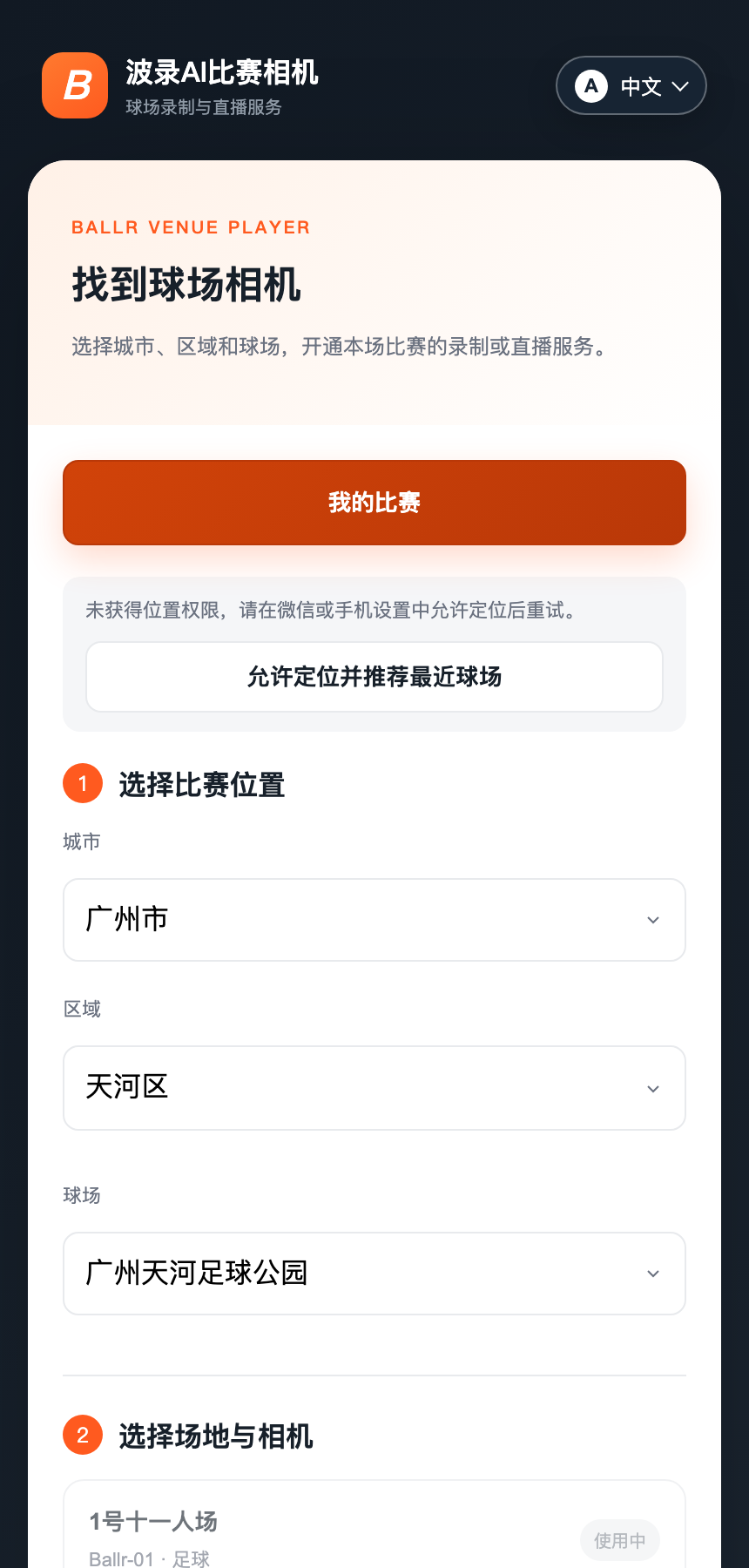
On first visit, allow location to find nearby venues or manually select city, district, venue and field.
- 3
Choose a recording or live service currently enabled on the page. The displayed field price applies.
- 4
Enter a match or video name, phone number or WeChat nickname.
- 5
Complete payment in WeChat and wait for confirmation that the order is paid.
 View full size ↗
Current production Venue 0.25.6 player interface. Allow location or select city, district, venue and field step by step; only public venue choices are shown.
 View full size ↗
This real product screenshot identifies the workflow path. Follow the version note and current on-screen labels; replace an older versioned image with a sanitized current screenshot before publishing.
Start and watch
- 1
Tap Start service only after the team and field are ready.
- 2
Wait for camera confirmation; do not tap repeatedly.
- 3
A Ballr Live order opens the Venue viewer and waits for real video. A custom RTMP order first saves the full publish URL securely and must be checked at the third-party receiver.
- 4
After recording ends, wait for the final merged recording, then play or download it from My videos or This match recording under the original order.
- 5
When an available End service control appears on the order, wait for camera confirmation after using it; closing the page does not prove the service stopped.
- 6
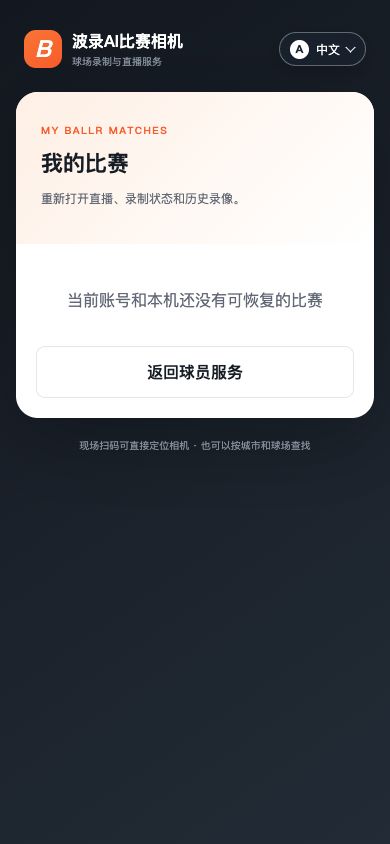
Use My matches after reopening or switching devices. The same browser reads its local history first; in WeChat, identity verification can restore paid orders tied to that identity.
- 7
If the camera says Taken offline by administrator, do not create another service; ask on-site staff to restore it first.
 View full size ↗
Current real product interface captured from the stated version. Any account, device or progress values shown are sanitized tutorial data.
If your screen differs from this guide, check the camera model, App or firmware version, account role and organization service status.