
✓iOS Local Network access is enabled for Ballr
Quick answer
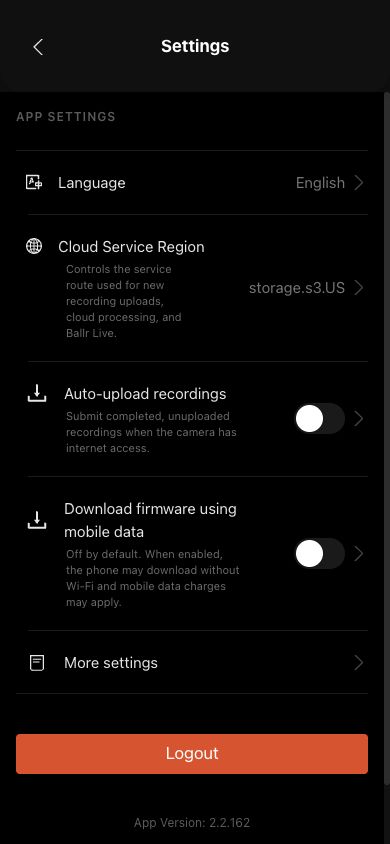
First check whether iOS allows Ballr to access the Local Network. Bluetooth can still find the camera while this permission is off, but Ballr App may be unable to read camera status, access the camera hotspot or transfer firmware.
 View full size ↗
After enabling Local Network access in iOS, fully close and reopen Ballr, then return to Settings or firmware update and try again.
Enable access on iPhone or iPad
- 1
Open Settings on the iPhone or iPad.
- 2
Go to Privacy & Security.
- 3
Tap Local Network.
- 4
Find Ballr in the application list.
- 5
Make sure the switch next to Ballr is turned on.
- 6
Fully close Ballr.
- 7
Reopen Ballr and reconnect to the same camera.
- 8
Try the camera operation or firmware update again.
If your screen differs from this guide, check the camera model, App or firmware version, account role and organization service status.