
✓iOS Local Network access is enabled for Ballr
Common settings
- Device status: battery, storage card, temperature and last update time.
- Connection settings: camera Wi-Fi, hotspot and SIM/4G.
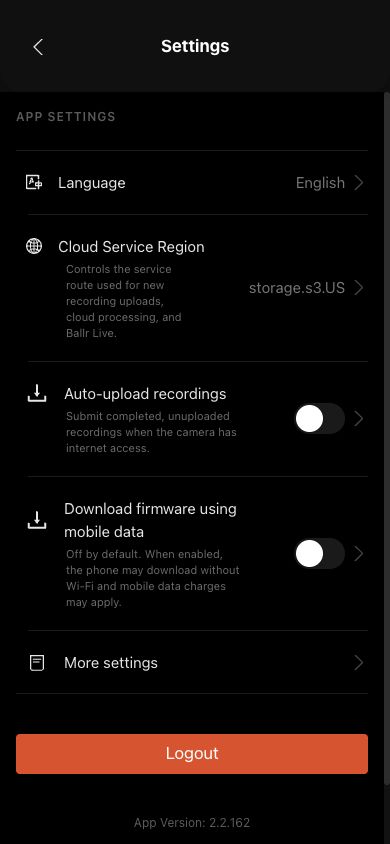
- App and data: language, automatic upload, cache and account actions. Current languages are Chinese, English, Russian and Spanish.
- Cloud-service region: verify whether the account uses China or the United States. After switching accounts, recheck cameras and cloud recordings so state from the previous account is not mistaken for current state.
- Clearing cache does not delete recordings from the camera or cloud.
 View full size ↗
This real 2.2.162 screen is retained only as a Settings path reference. The current guide baseline is 2.2.168; Clear cache now also resets Bluetooth and camera connections, so follow this guide and the labels on your device.
Enable access on iPhone or iPad
- 1
Open Settings on the iPhone or iPad.
- 2
Go to Privacy & Security.
- 3
Tap Local Network.
- 4
Find Ballr in the application list.
- 5
Make sure the switch next to Ballr is turned on.
- 6
Fully close Ballr.
- 7
Reopen Ballr and reconnect to the same camera.
- 8
Try the camera operation or firmware update again.
Clear cache and repair the camera connection
- 1
Only when no recording, live stream, upload or firmware installation is active, open Settings → More settings → Clear cache.
- 2
After confirmation, the App clears temporary cache and resets Bluetooth and camera connections. Your account, camera assignment, Wi-Fi settings, recordings, downloads and upload tasks are kept.
- 3
If the App says the cache cannot be cleared now, finish or stop the listed tasks before trying again.
- 4
The camera disconnects briefly. Wait for the App to refresh and reconnect, then check the original issue again.
Firmware update
- 1
Start only when the App offers an applicable update; never update during recording or live streaming.
- 2
Connect stable power and allow about 6–10 minutes.
- 3
Follow the page through download verification and transfer to the camera.
- 4
When prompted, hold the power button to turn off the camera, wait five seconds and turn it on again.
- 5
Wait for automatic reconnection and version verification before reporting success.
- 6
A critical or mandatory update locks Back until verification succeeds; do not force-quit the App to bypass it.
- 7
For older cameras without structured update status, the latest App uses a compatible installation path and still completes restart and version verification. Follow the final on-screen result.
 View full size ↗
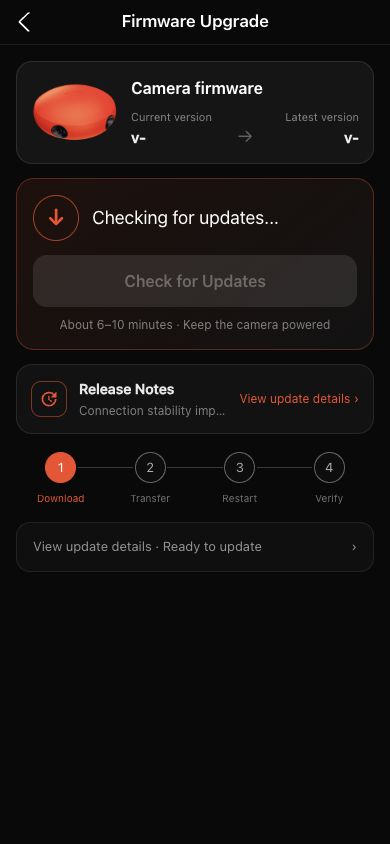
The current update page covers download verification, transfer, restart and final version verification. Without a connected camera, version details and the update action remain unavailable.
If your screen differs from this guide, check the camera model, App or firmware version, account role and organization service status.