
Quick answer
Wait for Bluetooth, camera information and camera service to finish in order. If the state does not change, verify the camera ID, power and permissions, then explicitly reconnect to the same camera once.
 View full size ↗
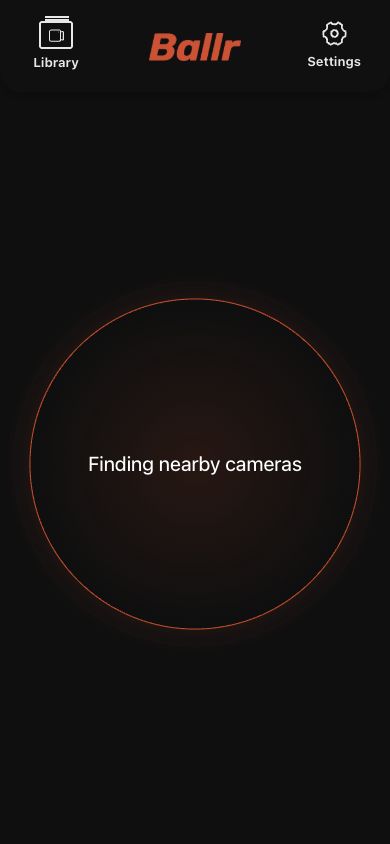
Current Ballr App 2.2.162 Camera interface while it discovers nearby devices. Select only a device bound to the account with the matching device ID.
Check in this order
- 1
Confirm the camera is on and its status light is stable.
- 2
Move the phone close to the camera and keep Bluetooth on.
- 3
In iOS Settings, confirm Ballr has Bluetooth permission.
- 4
Close and reopen camera selection in the App, then scan again.
- 5
Confirm another phone is not maintaining a connection to the camera.
- 6
If it appears as Unbound, ask the organization administrator to check ownership.
If it still fails
- Record the camera device ID
- Capture the full scan state
- Include the App and phone OS versions
- Contact Ballr Support
If your screen differs from this guide, check the camera model, App or firmware version, account role and organization service status.